Sonixd-Redux
Getting Started
Installation
Download the latest release for your platform from the Releases page.
| Platform | Format |
|---|---|
| Windows x64 | .exe installer |
| macOS x64/arm | .dmg |
| Linux x64/arm | .AppImage, .tar.xz |
Run the installer and launch Sonixd Redux. On first launch you will be greeted by the login screen.
Connecting to your server
Sonixd Redux supports two server types:
- Subsonic - compatible with Navidrome, Airsonic, Gonic, and any Subsonic-API server
- Jellyfin - native Jellyfin API support
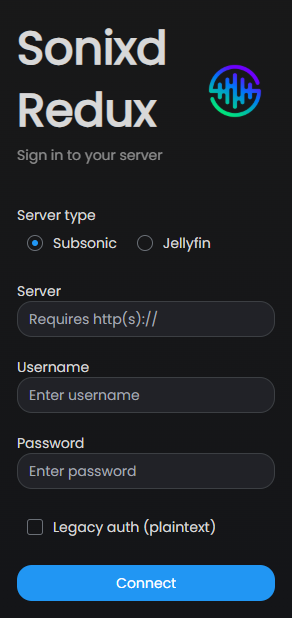
- Select your Server type (Subsonic or Jellyfin)
- Enter your Server URL - include
http://orhttps://, e.g.https://music.example.com - Enter your Username and Password
- Click Connect
Subsonic users: if your server uses plaintext authentication (older setups), enable Legacy auth (plaintext) before connecting.
Self-signed certificate users: if your server uses a self-signed certificate that is not in your system trust store, enable Accept self-signed certificates before connecting. Read the self-signed certificates documentation for the security implications before doing so.
Once connected, Sonixd Redux loads your library and takes you to the dashboard.
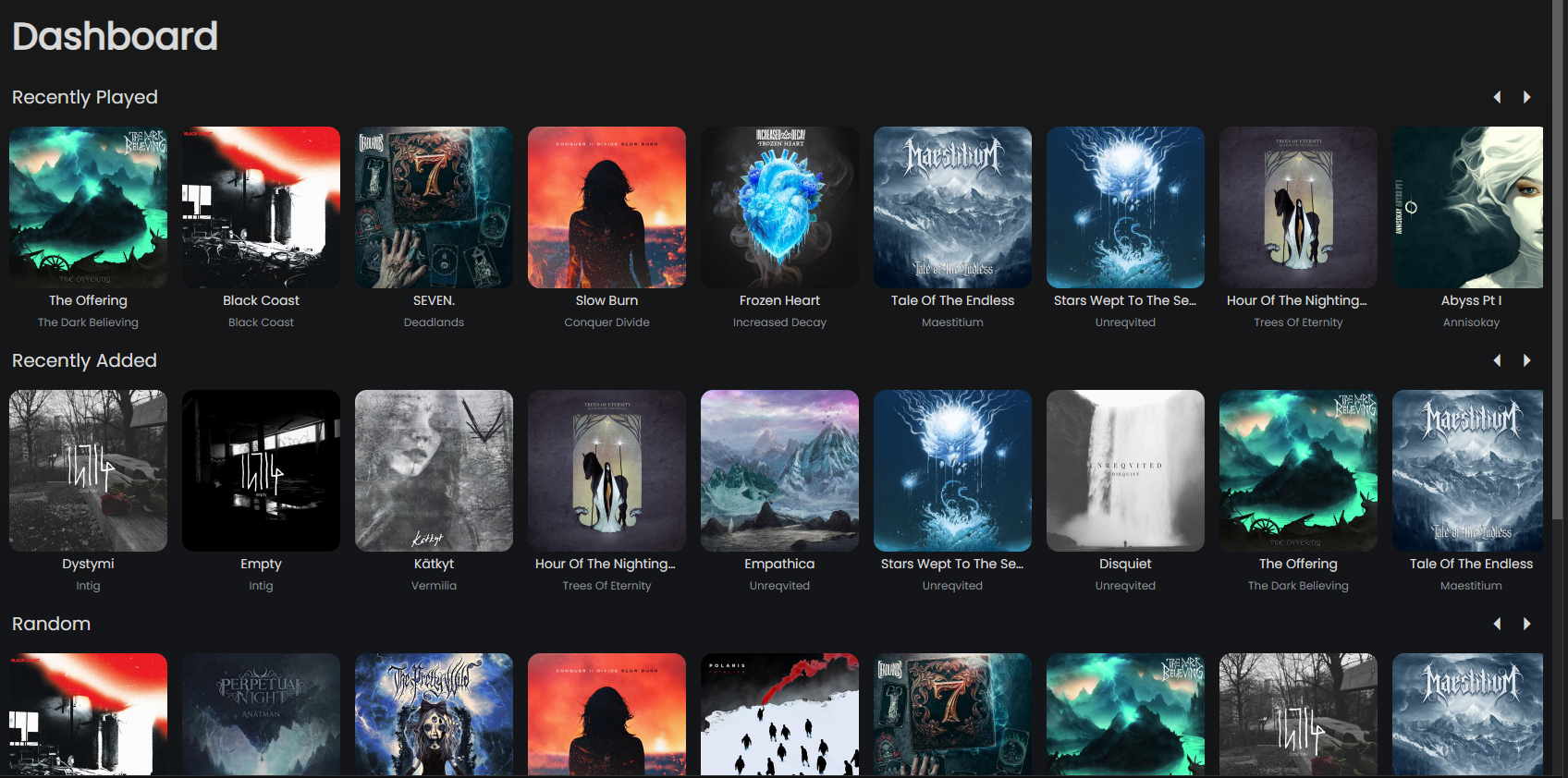
Sidebar navigation
The sidebar on the left gives you access to all sections of your library:
| Section | Description |
|---|---|
| Dashboard | Recently added and most played |
| Now Playing | Current queue |
| Playlists | Your playlists |
| Smart Playlists | Rule-based playlists filtered and sorted locally |
| Favorites | Starred albums, artists and tracks |
| Songs | Full song library |
| Albums | Album library with grid/list view |
| Artists | Artist library |
| Genres | Browse by genre |
| Folders | Browse by folder structure |
| Internet Radio | Stream radio stations configured on your server |
| Podcasts | Browse and play podcast episodes managed by your server |
| Config | Settings |
You can customize which sections appear in the sidebar in Settings → Look & Feel → Sidebar. Some entries are hidden depending on your server type - Internet Radio and Podcasts are only available on Subsonic-compatible servers, and are hidden for Jellyfin users.
Disconnecting
To switch server or account, click the Disconnect button in the top-right corner of the Settings page.