Sonixd-Redux
Playback
Player controls
The player bar sits at the bottom of the window at all times.

| Control | Description |
|---|---|
| Stop | Stops playback and return to the beginning of the track |
| Previous | Goes to previous track (restarts current if >5s in, or go directly to previous song, configurable) |
| Seek back arrows | Seeks back (custom time can be defined in settings) |
| Play / Pause | Toggles playback |
| Seek forward arrows | Seeks forward (custom time can be defined in settings) |
| Next | Skips to next track |
| Play random | Replaces the queue with random songs |
| Seek bar | Click or drag the progress bar to seek |
| Favorite | Click on the ❤ icon to add the current playing song to favorites |
| Repeat | Cycles through Off → Repeat All → Repeat One |
| Shuffle | Randomizes the queue |
| Jukebox mode | Enables jukebox mode for servers that support it |
| Sleep timer | Opens the sleep timer menu where you can set a duration after which playback stops |
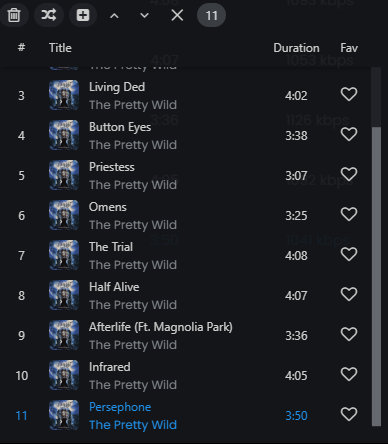
| Mini player | Shows the current playing queue from anywhere |
| Volume | Drags the volume slider or scroll with the mouse wheel |
| Mute | Toggles mute |
| Star rating | Lets you rate the current song from 1-star to 5-star |
Playing music
Double-click any song in a list to play it immediately and replace the current queue.
Right-click any song, album, or artist for the context menu with options to:
- Play now (replaces queue)
- Add to queue (next / later)
- Add to playlist
- Add to favorites
- Show the song’s spectrogram
Queue management
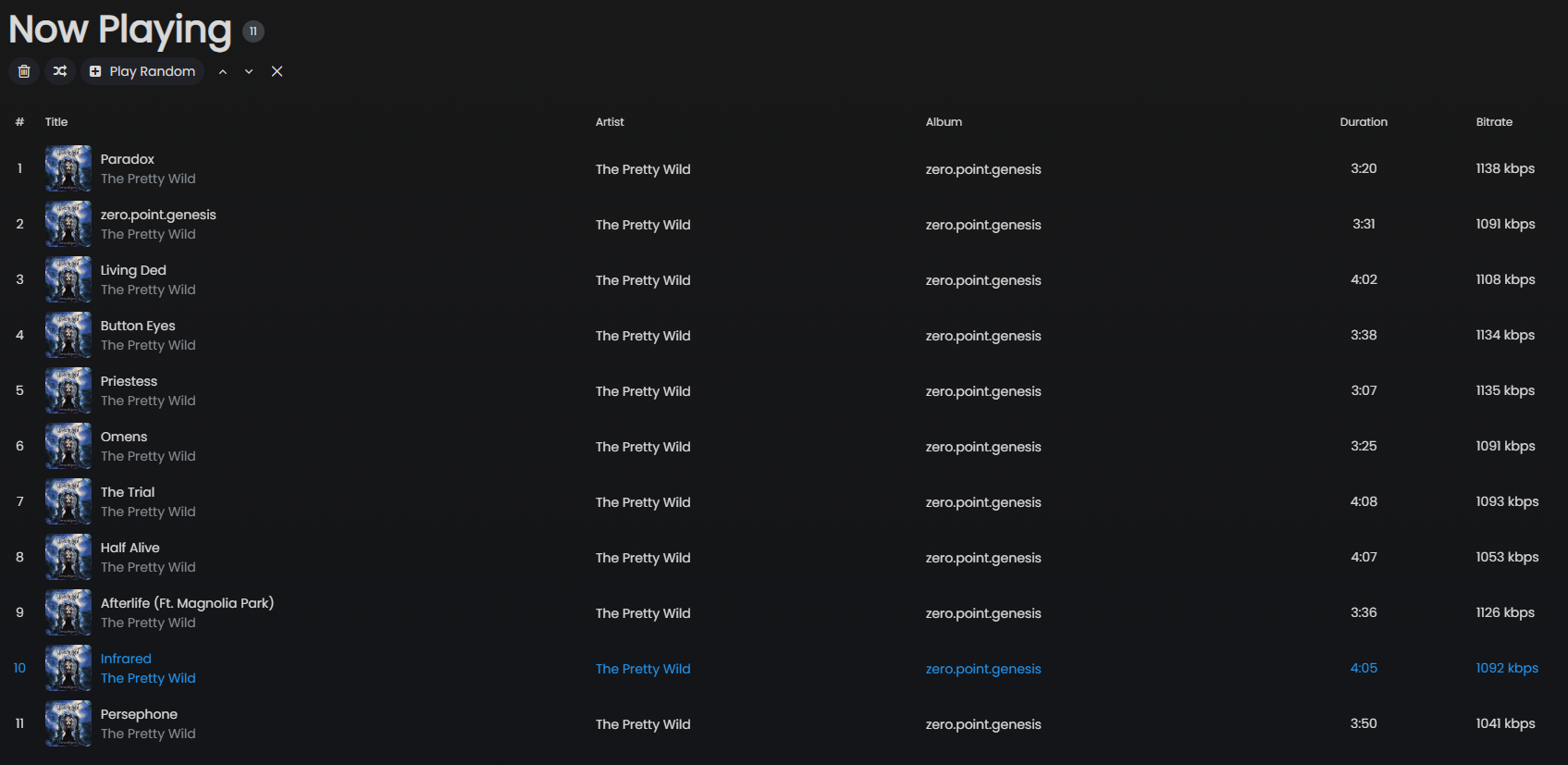
Click Now Playing in the sidebar to see the current queue.
- Drag and drop rows to reorder tracks by dragging the track number on the very left (it shows a pick hand cursor and changes the number with a logo)
- Right-click for per-track options
- Shuffle queue - randomizes the remaining tracks
- Clear queue - removes all tracks
- Arrows - let you move the selected track(s) up and down by one row
Play Next vs Play Later
- Add (next) - inserts the track right after the currently playing one
- Add (later) - appends the track at the end of the queue
When Preserve Play Next Order is enabled (Settings → Player), tracks added via “Play Next” are queued in the order they were added rather than each one jumping to the top. You can change it if you want play next to be literal.
Repeat modes
| Mode | Behaviour |
|---|---|
| Off | Stop after the last track |
| Repeat All | Loop the entire queue |
| Repeat One | Loop the current track |
Stop after current
Tick the Stop after current box in the sleep timer menu to finish the currently playing track and then pause. The box is checked when active and resets automatically after stopping.
Mini queue panel
Click the Mini button (the list icon) in the player bar to show a small queue panel in the bottom-right corner of the window. This gives you quick access to the current queue without navigating away from your current view.